How To Guidelines in Components
Explore detailed guidelines for utilizing the Documents feature in Iron Fort Compliance to centralize document management, enhance collaboration, and ensure audit readiness.
Component allows users to manage and monitor specific technical components tied to an environment or application. This feature provides a centralized view of key attributes like vendor, infrastructure type, and operating system, along with the current status. It offers streamlined tracking, configuration management, and improved oversight of deployed assets, ensuring systems are organized, secure, and easy to audit to users
-
How To: Add Components
- Log in to Iron fort: How To: Login
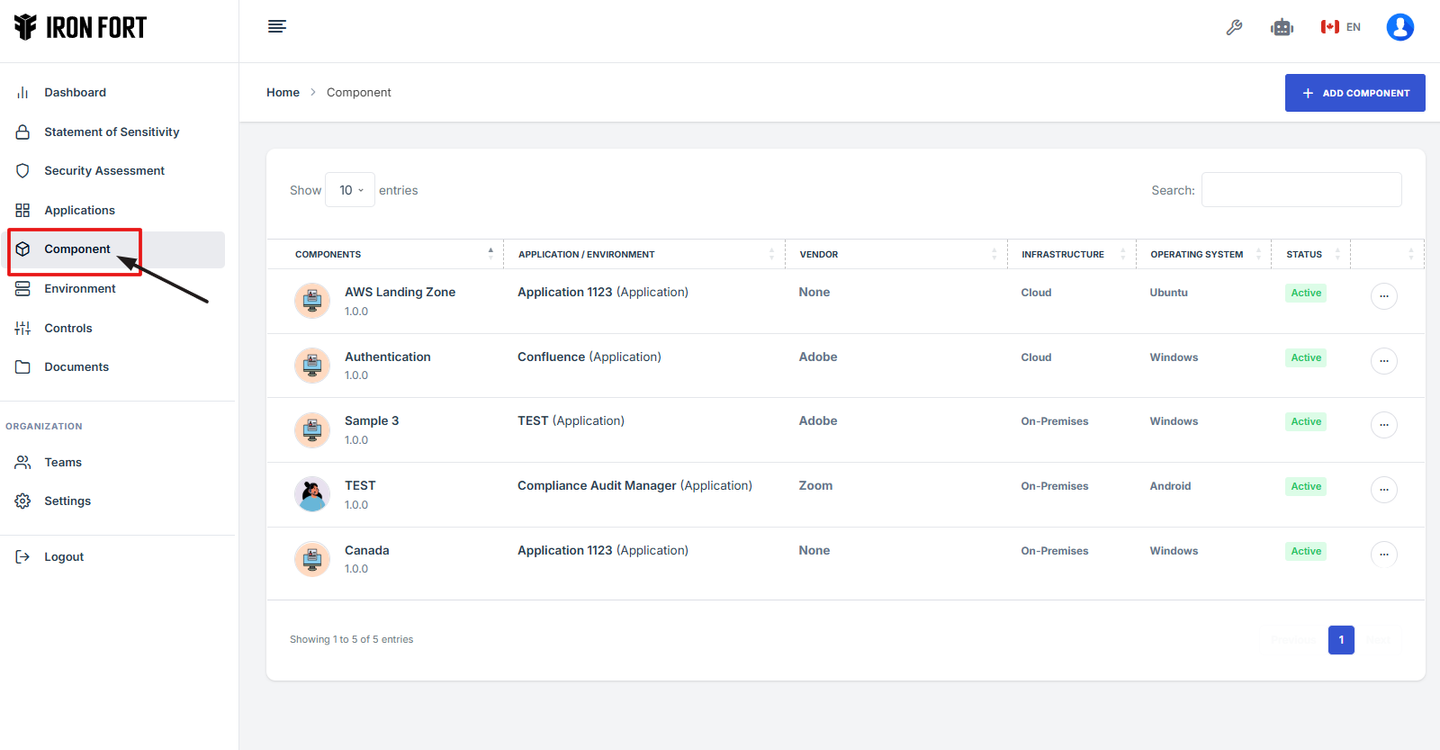
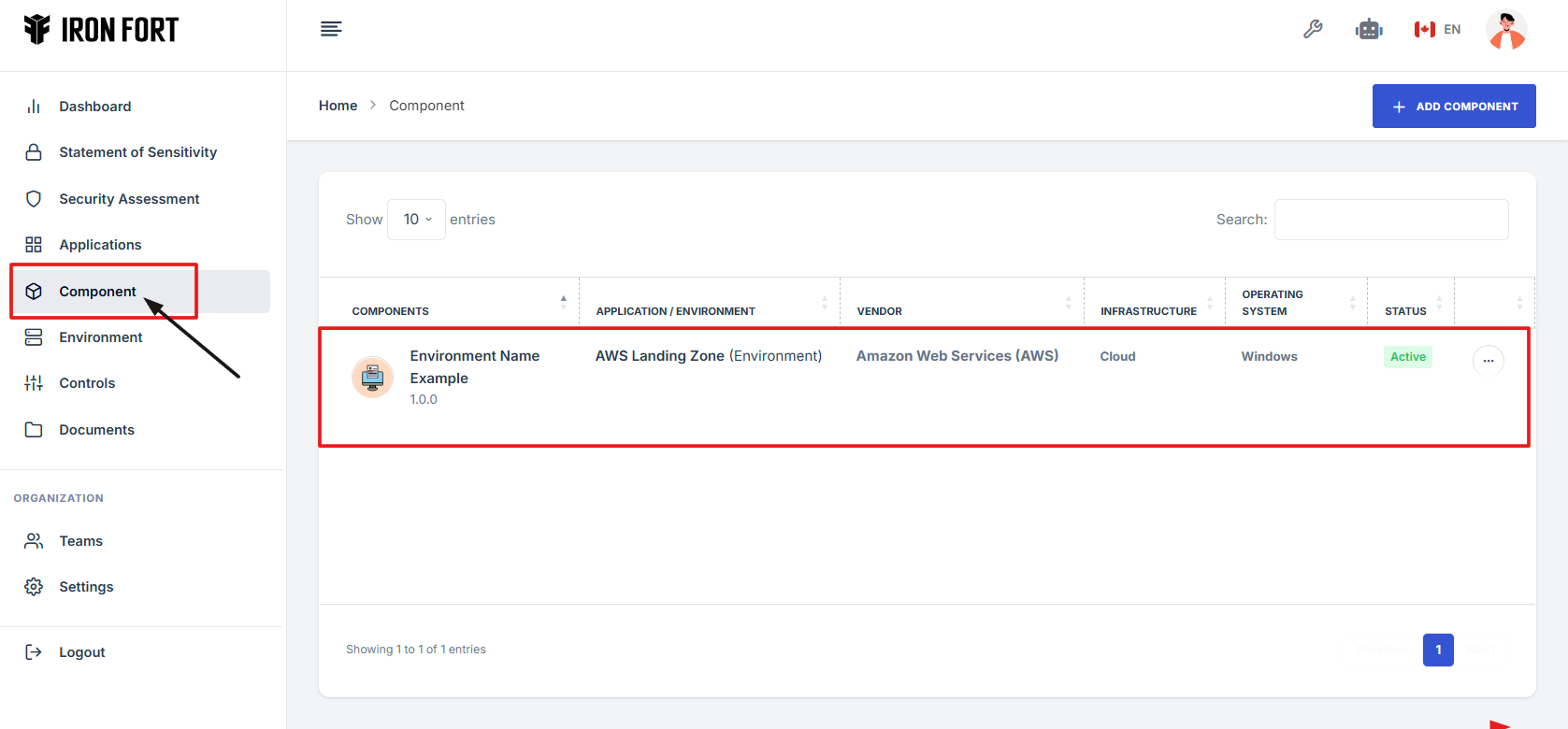
- Locate and click the Components tab on the dashboard.
- On the Components page, Click the "Add Component" button in the upper-right corner of the screen.
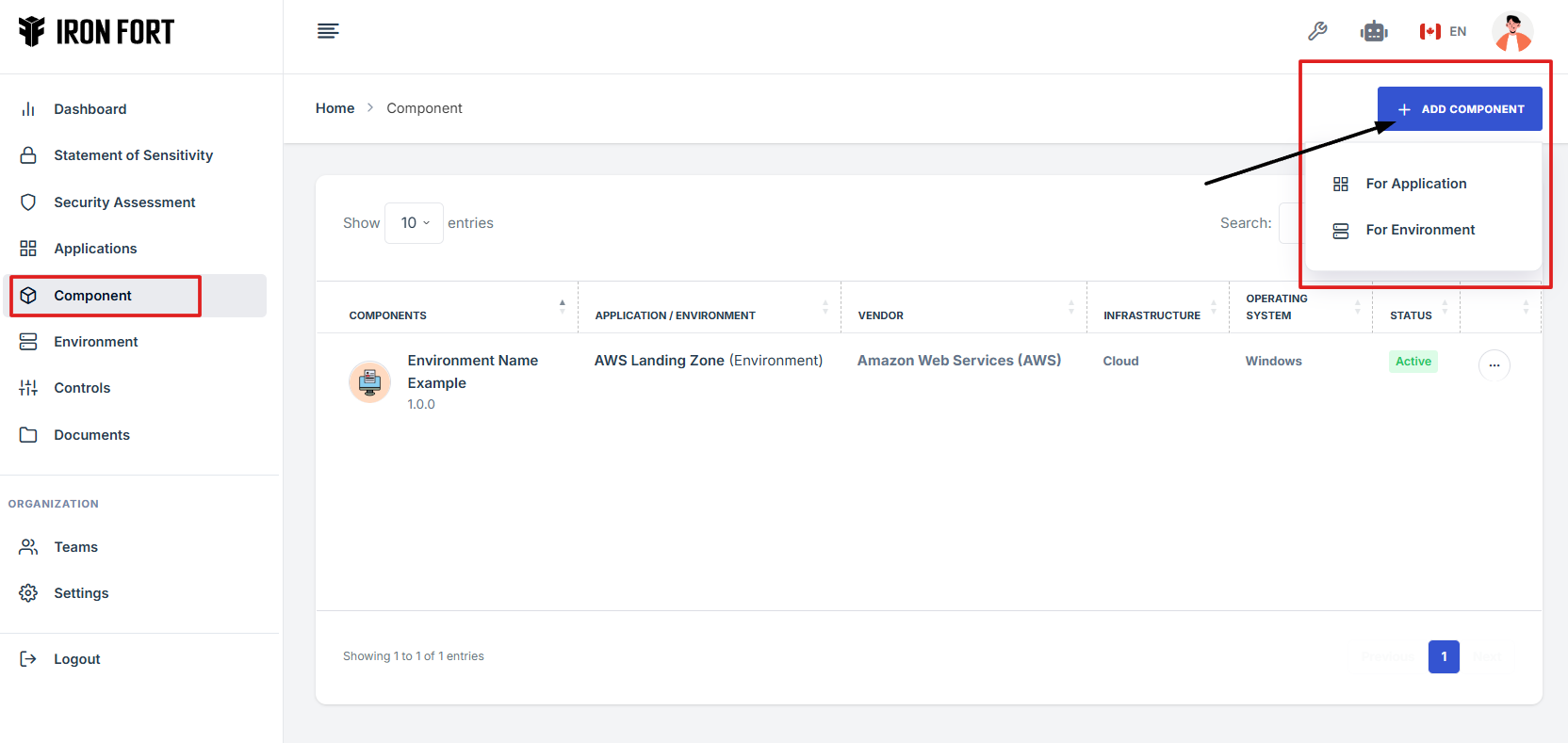
- Select the type of component you want to add, either Environment or Application.
- Fill out the required component details
- Click the "Save Changes" button to finish and save your new component.
1. Log in to Iron fort: How To: Login
2. Locate and click the Components tab on the dashboard.
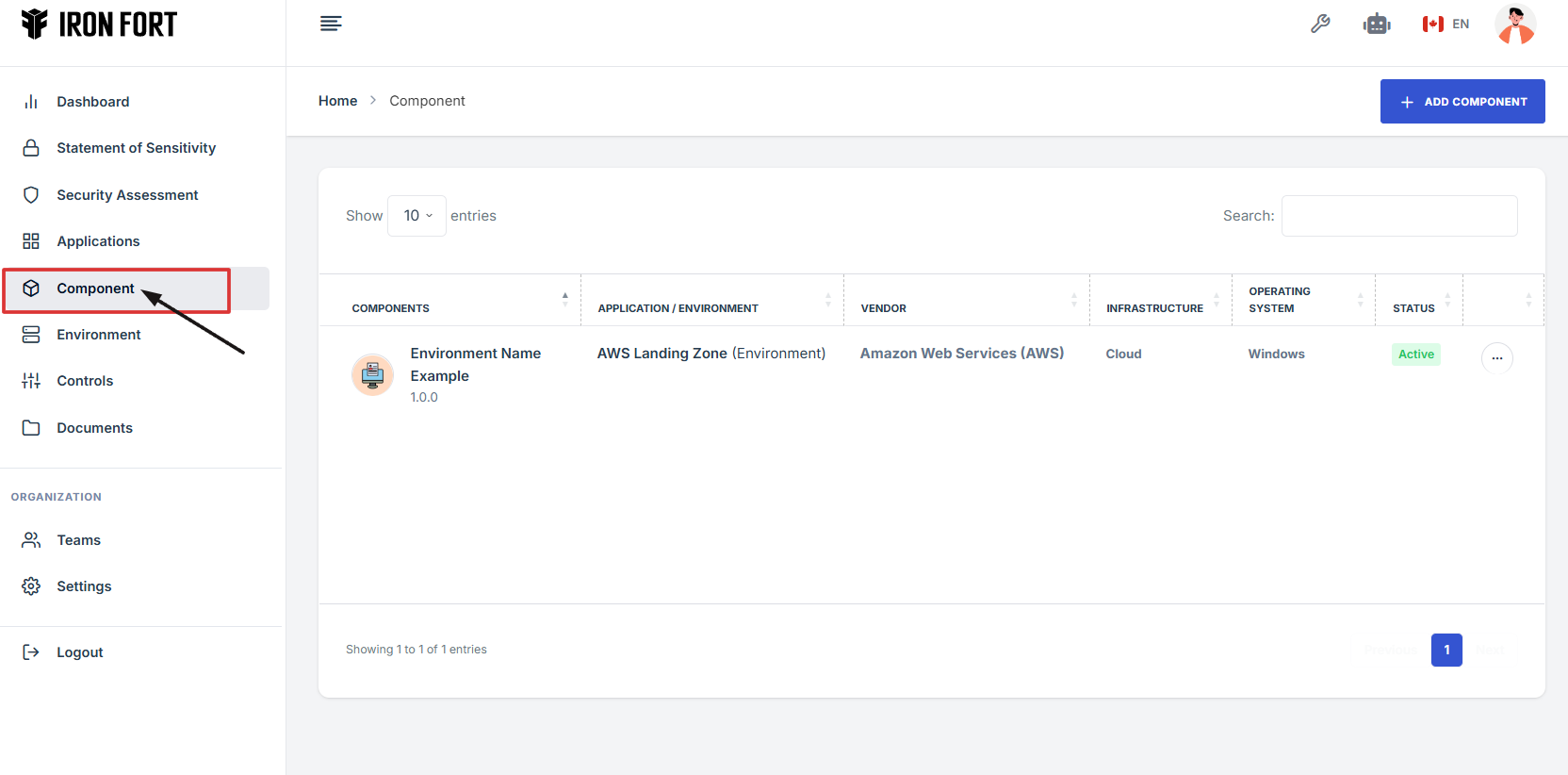
3. On the Components page, Click the "Add Component" button in the upper-right corner of the screen.
4. Select the type of component you want to add, either Environment or Application.
5. Fill out the required component details
-
Component Name: Enter a unique name to identify your component.
-
Vendor: Select the company or provider that supplies the component.
-
Infrastructure: Choose the type of infrastructure the component runs on.
-
Operating System: Select the operating system used by the component.
-
Application: Link the component to a related application if applicable.
-
Version: Enter the version number of the component.
-
Status: Select the current state of the component.
-
Description: Add any extra information or notes about the component.
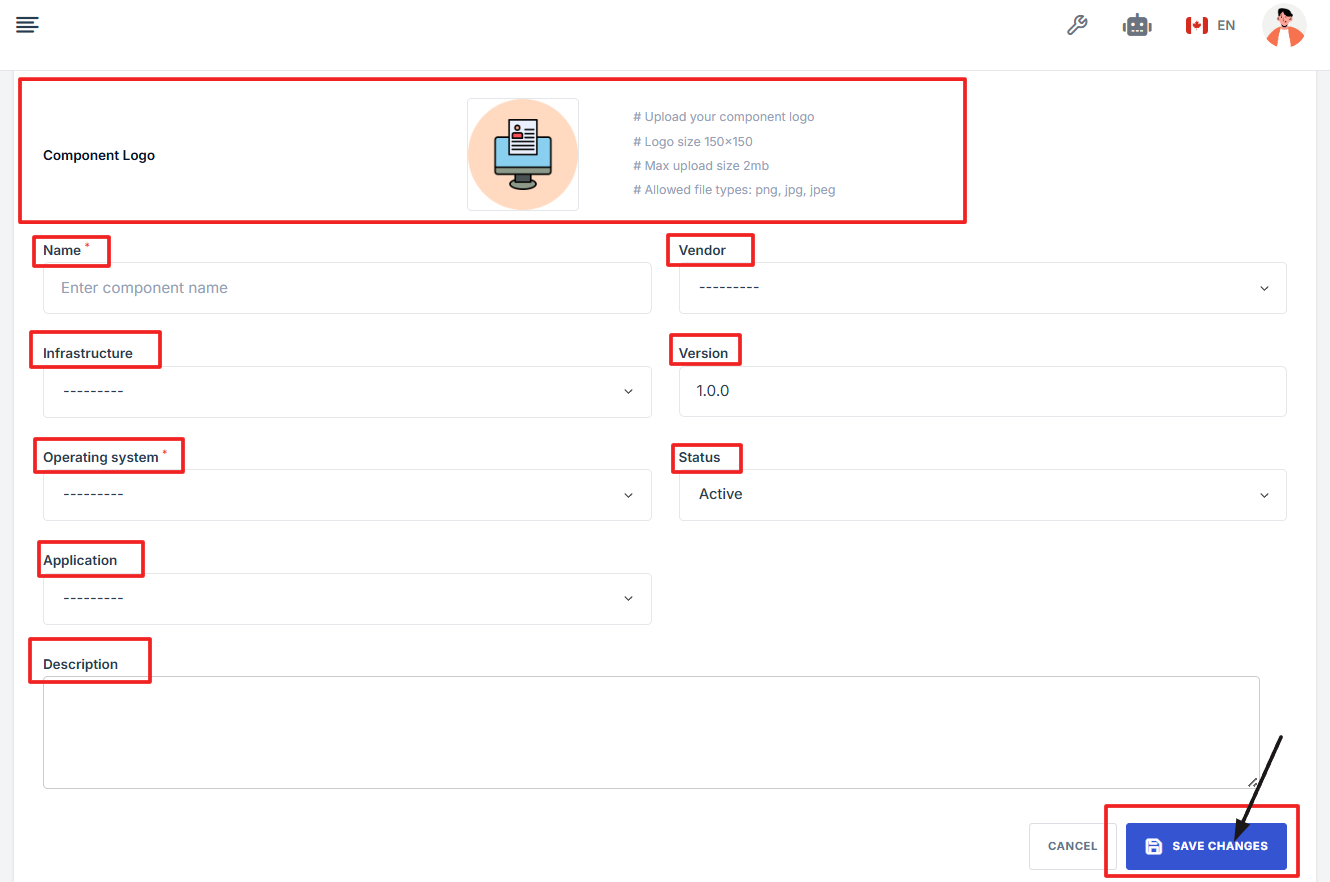
6. Click the "Save Changes" button to finish and save your new component.
1. Log in to Iron fort: How To: Login
2. Locate and click the Components tab on the dashboard.
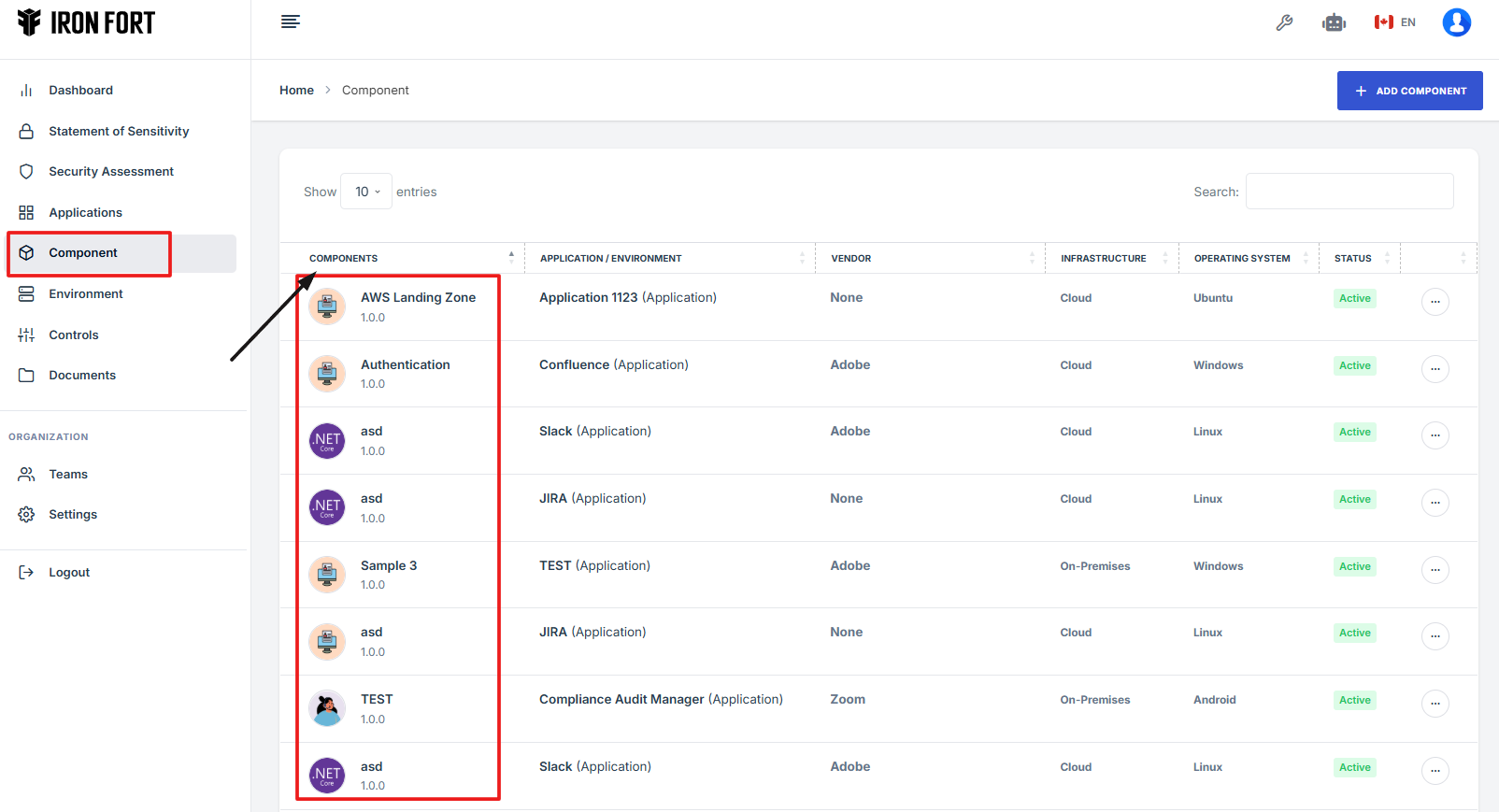
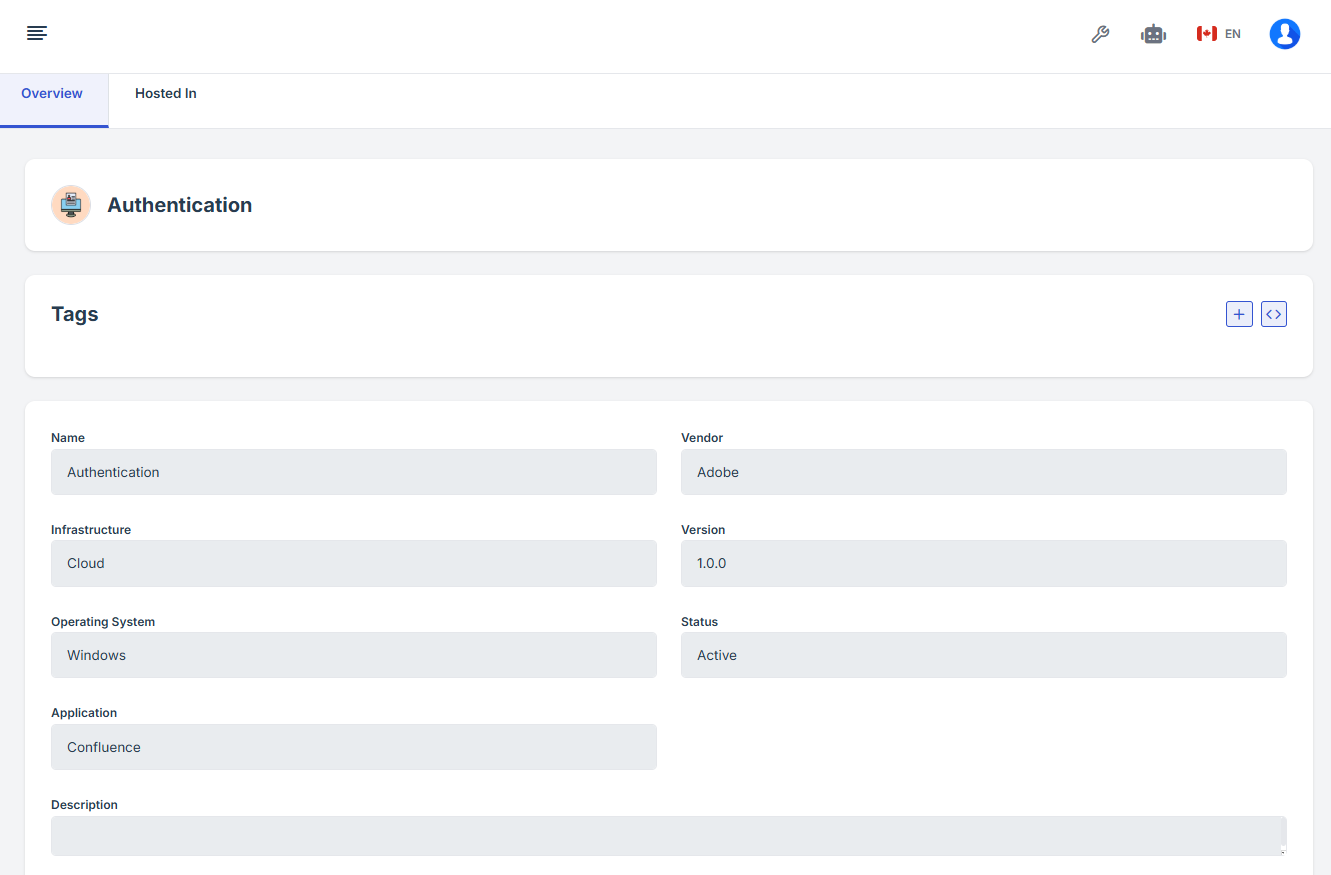
3. Under the Components page, click the “Components name” to get to the overview page.
4. Once on the overview page, you'll see a summary section that provides key details about the components.
-
How To: Edit Components
- Log in to Iron fort: How To: Login
- Locate and click the Components tab on the dashboard.
- Under the Components t page, click the “Components name” to get to the overview page.
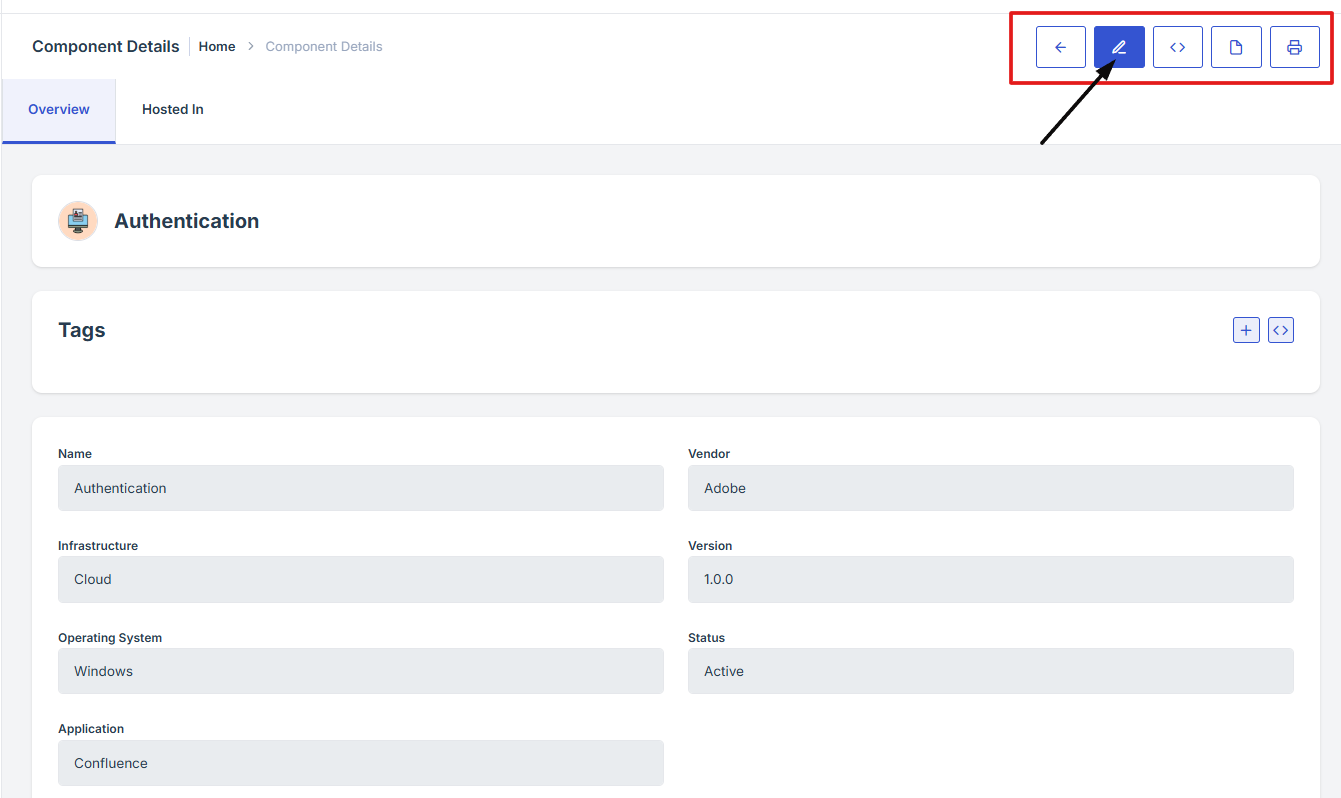
- On the Components overview page, navigate at the top right corner and click the pencil icon to edit the components overview page.
1. Log in to Iron fort: How To: Login
2. Locate and click the Components tab on the dashboard.
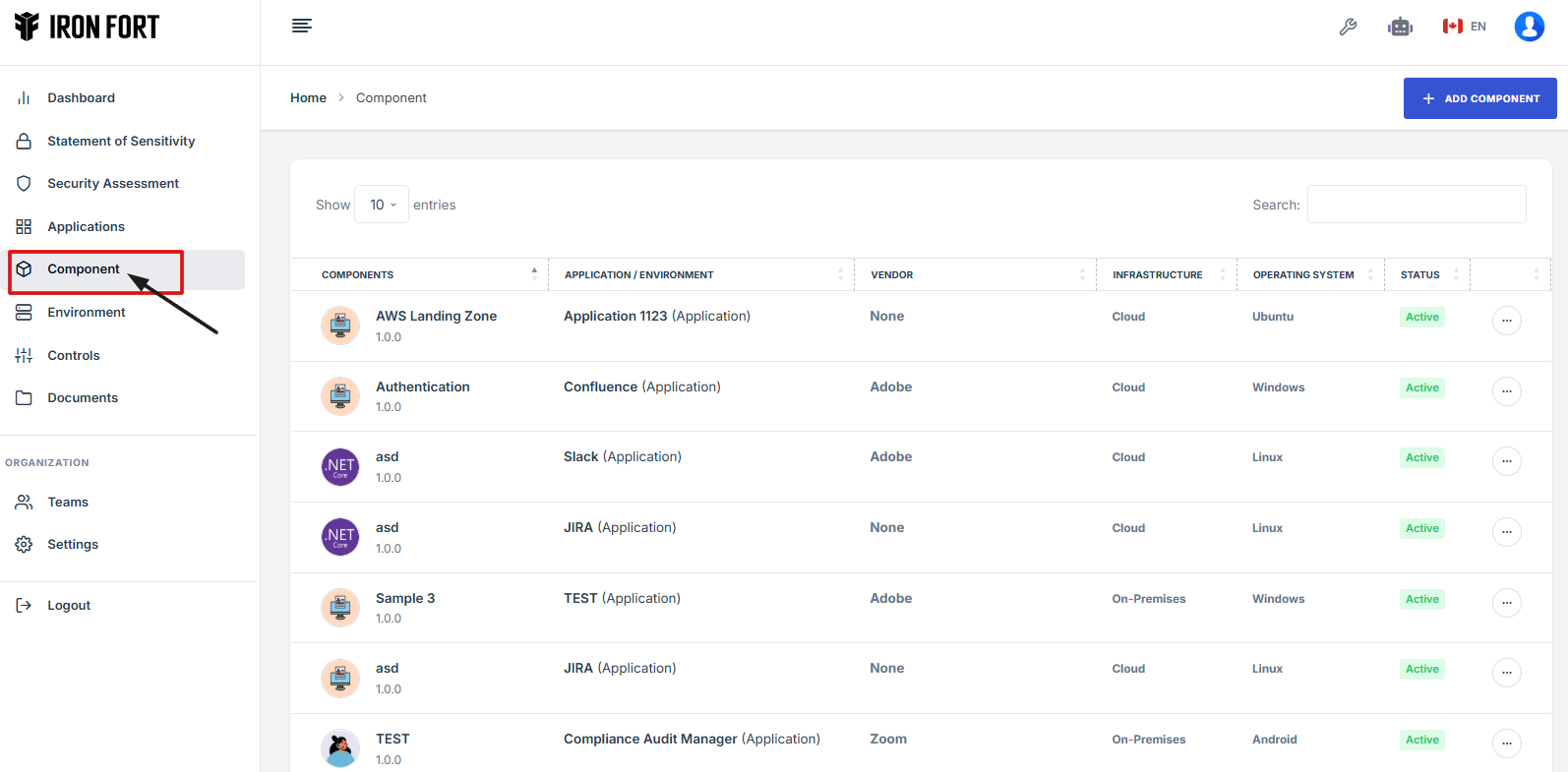
3. Under the Components page, click the “Components name” to get to the overview page.
4. On the Components overview page, navigate at the top right corner and click the pencil icon to edit the components overview page.