How To Guidelines in Forti AI
Explore detailed guidelines for using Forti AI Chat to enhance team collaboration, streamline communication, and leverage AI-driven insights for efficient compliance management.
Forti Chat is designed to centralize internal conversations, use AI for smart responses, and help teams collaborate efficiently without needing to leave the CRM.
Uses of Forti Chat
Team conversations: Discuss tasks, sales leads, customer issues, or project updates in real time.
AI help desk: Ask the AI questions related to CRM data, processes, customer profiles, etc.
Collaboration on client records: Directly chat while looking at customer accounts, tickets, or sales funnels.
Notification center: Receive system notifications (like ticket updates, CRM alerts, etc.) without needing extra email notifications.
Benefits to the User
- Saves time: Quickly access information without jumping between different tools.
- Increases efficiency: Centralizes conversations related to security and compliance projects.
- Boosts security: Conversations are protected within a compliance-first environment.
- Keeps teams aligned: Everyone involved in the compliance process can stay updated in real-time.
- Smart suggestions: AI can help by surfacing important information or deadlines inside the chat.
-
How To: Delete a Chat in Forti AI Chat
- Navigate to your organization’s Iron Fort Compliance login page
- Log in to Your Account
- Check your email for the One-Time Password (OTP) sent on your email and enter the OTP to proceed
- Enter the OTP to verify your identity and click “validate.”
- Once logged in, a welcome prompt will appear displaying
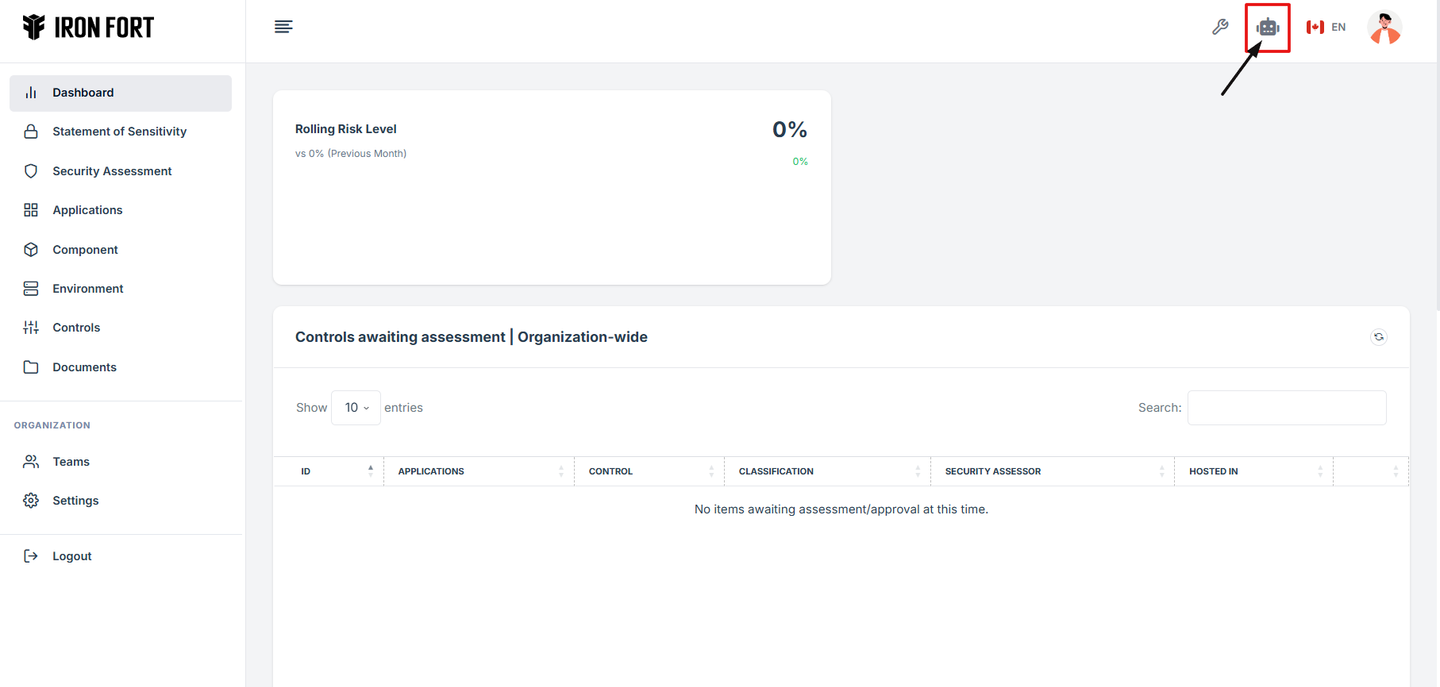
- On your dashboard, click the robot icon located at the top right corner of the screen
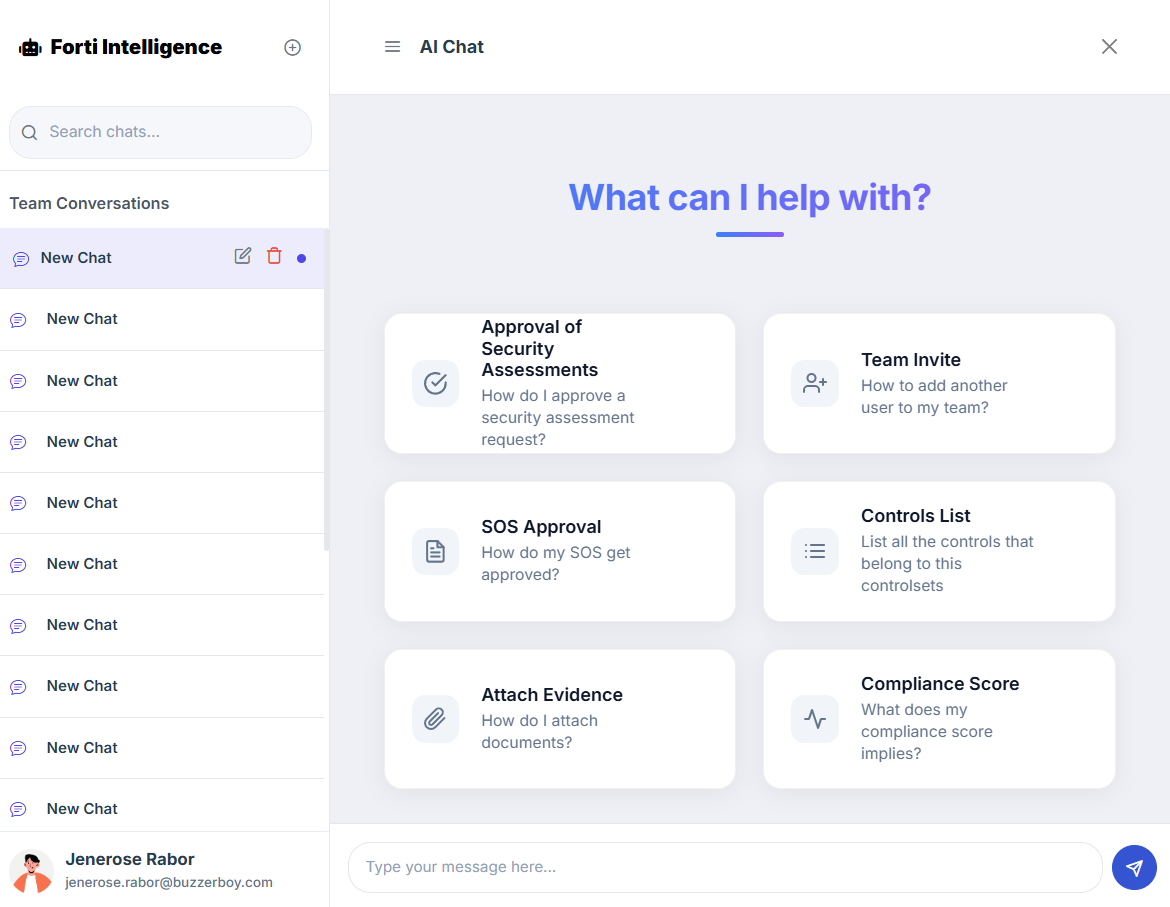
- Look under the Title section and click the trash can icon next to the chat you want to remove
- A pop-up message will appear. Click "OK" to confirm and delete the chat
- NOTE
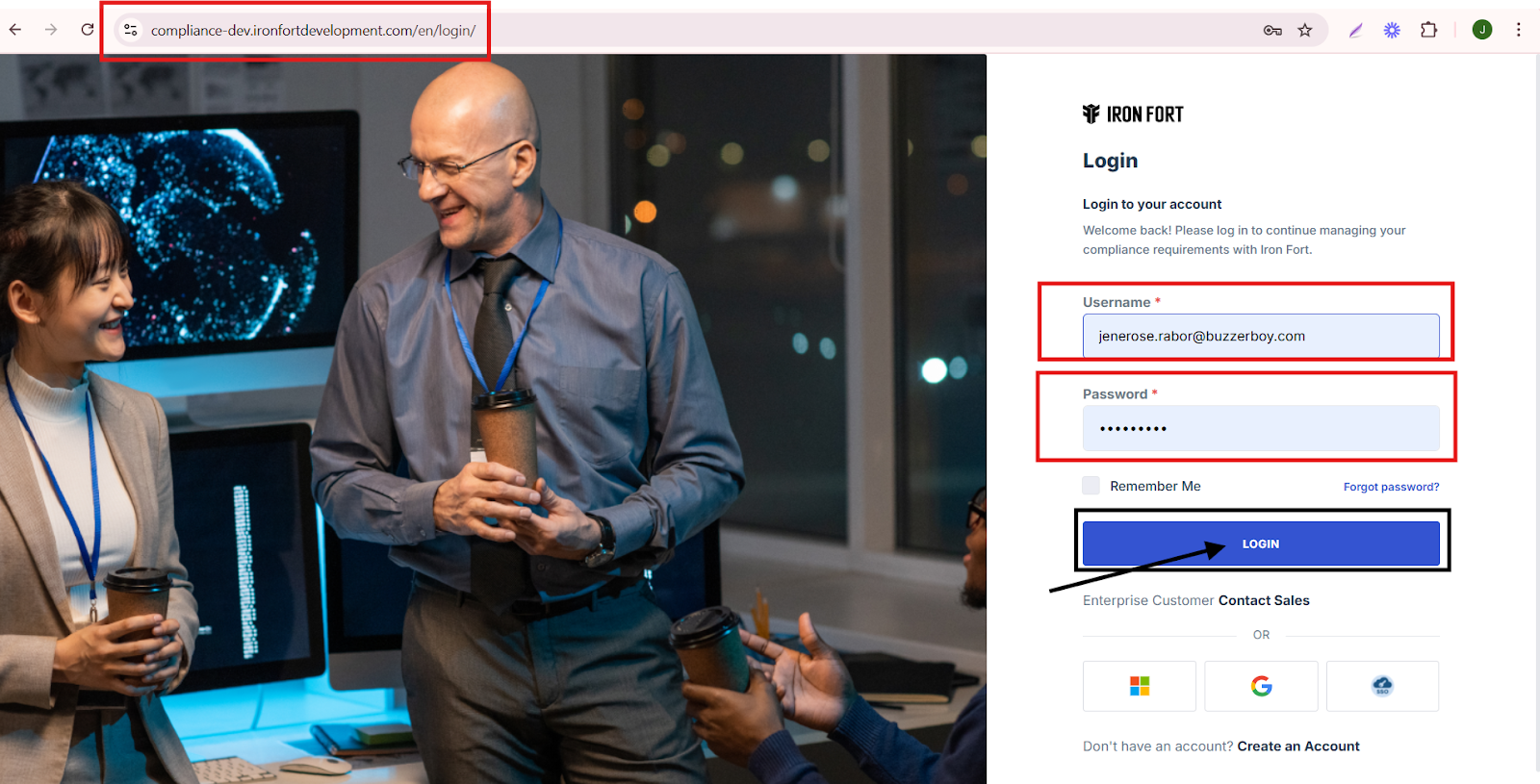
1. Navigate to your organization’s Iron Fort Compliance login page
For example: https://compliance-demo.ironfortdemos.com/en/login/?next=/en
2. Log in to Your Account
Enter your email and password to log in.
3. Check your email for the One-Time Password (OTP) sent on your email and enter the OTP to proceed.
4. Enter the OTP to verify your identity and click “validate.”
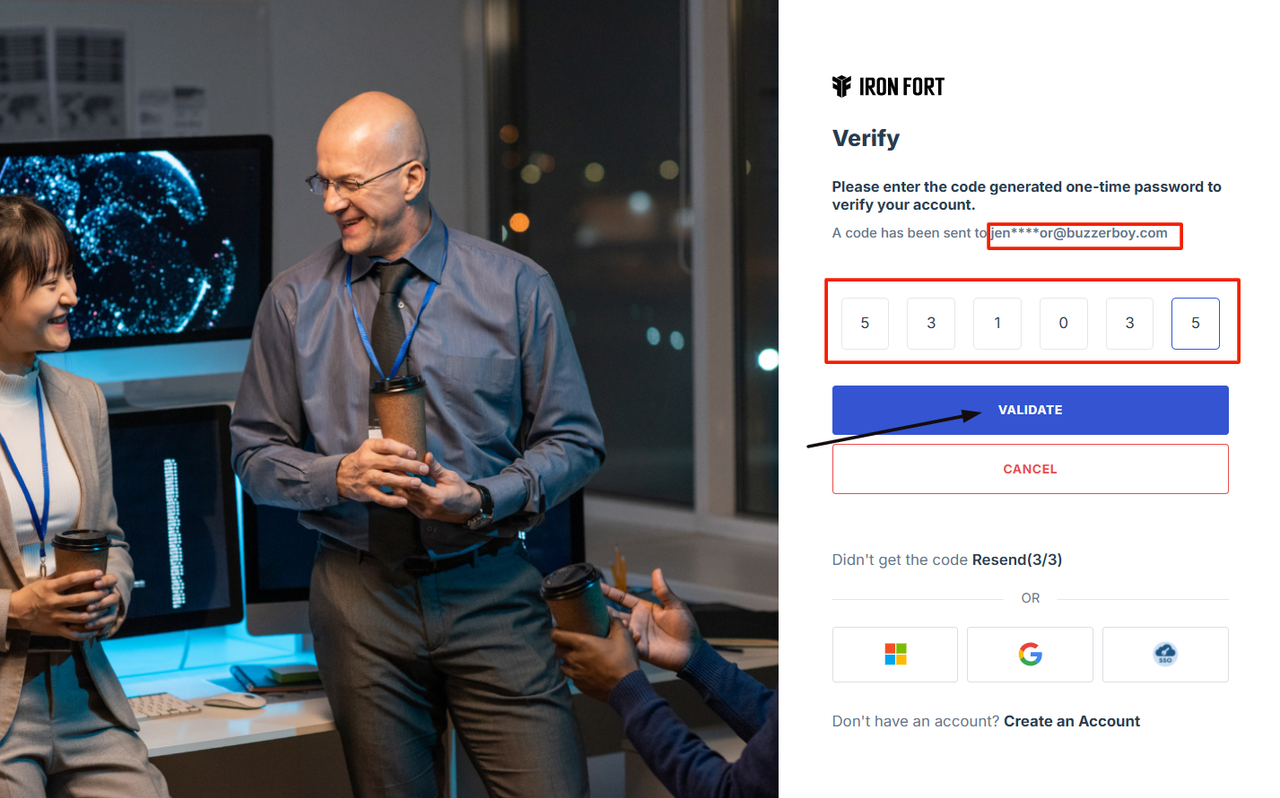
5. Once logged in, a welcome prompt will appear displaying
-
Tenant Key Information: Verifying your system access
-
User Email: Your registered email for auditing purposes
-
Last Login Details: To track your previous access
-
Iron Fort Support Email: For any login issues or concerns
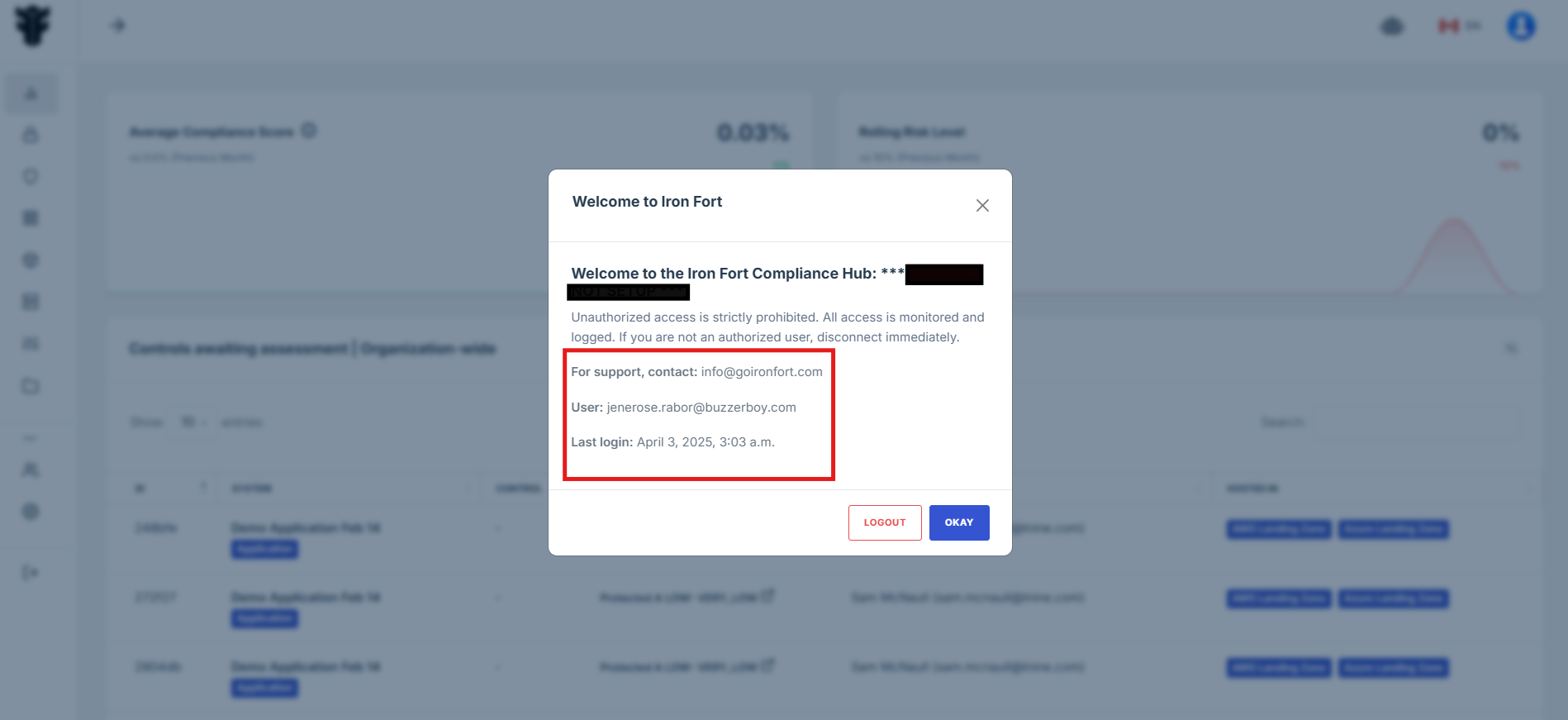
NOTE: If you recognize the details and are authorized, click "OK" to continue. However, if you are not an authorized user, click "Logout" immediately to exit.
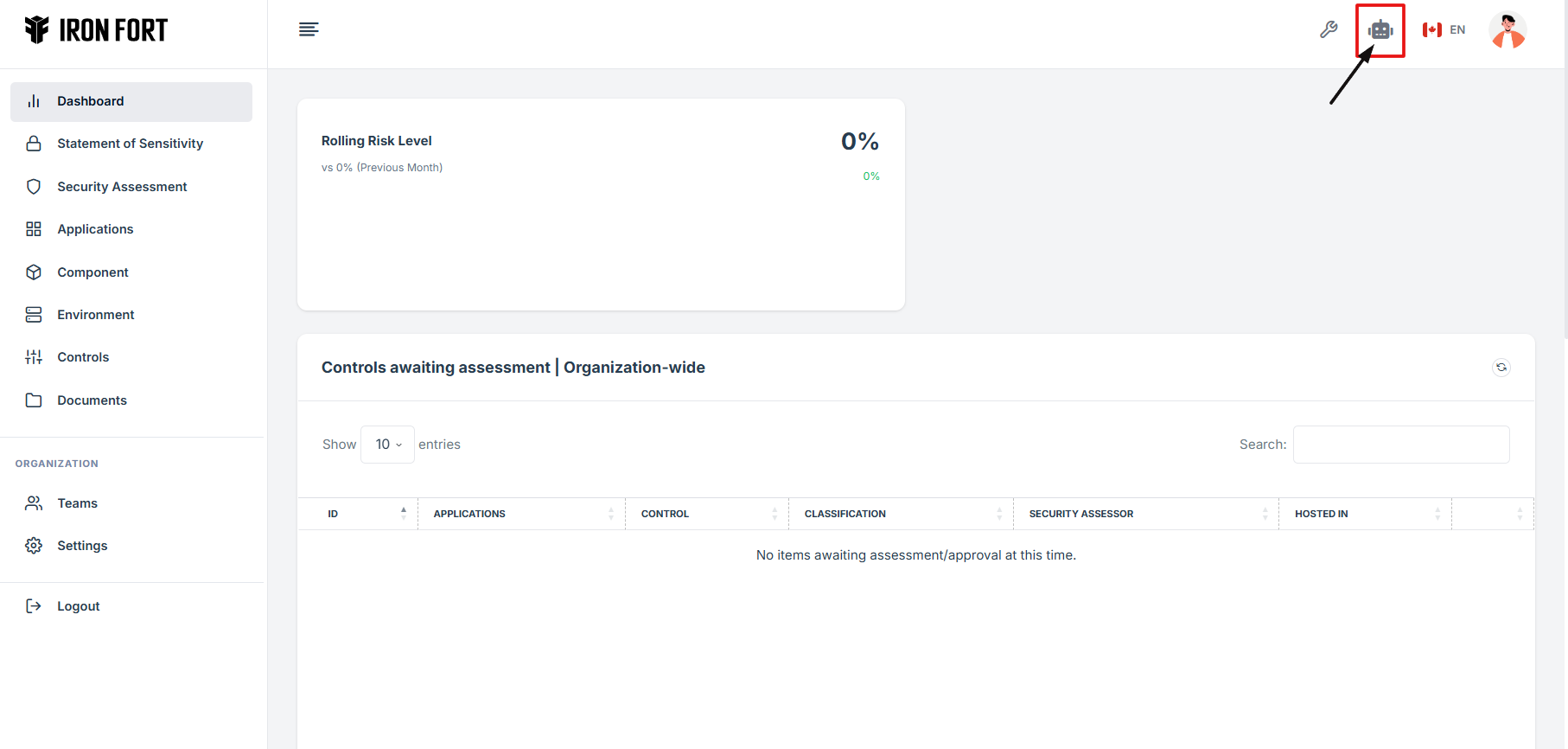
6. On your dashboard, click the robot icon located at the top right corner of the screen.
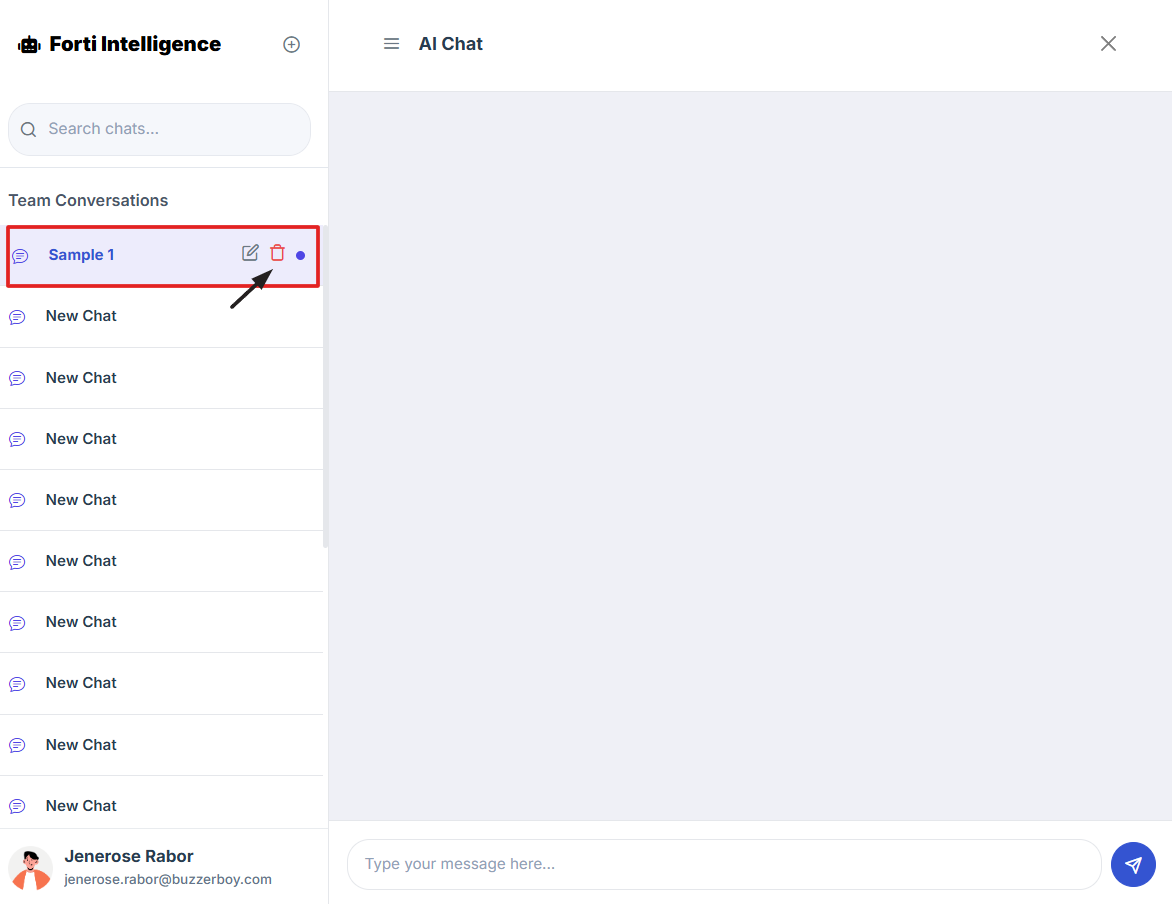
7. Look under the Title section and click the trash can icon next to the chat you want to remove.
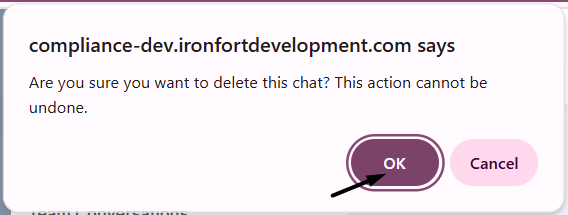
8. A pop-up message will appear. Click "OK" to confirm and delete the chat.
9. NOTE
Once deleted, the chat conversation cannot be recovered.
-
How To: Start a New Chat in Forti AI
- Navigate to your organization’s Iron Fort Compliance login page
- Log in to Your Account
- Check your email for the One-Time Password (OTP) sent on your email and enter the OTP to proceed
- Enter the OTP to verify your identity and click “validate.”
- Once logged in, a welcome prompt will appear displaying
- From your dashboard, click the robot icon located at the top right corner of the screen
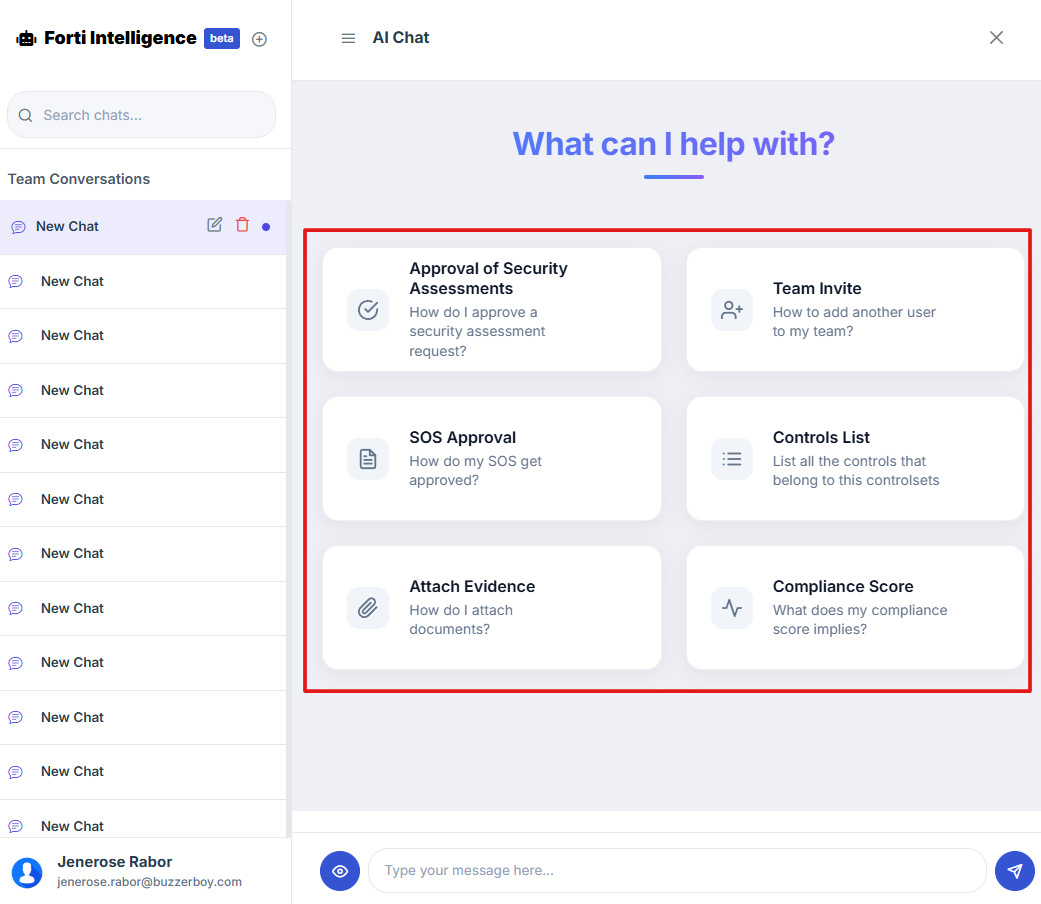
- Once you're on the Forti Chat page, look for the "+" (Add New Chat) icon next to the Forti Intelligence title.
- After creating a new chat, type your message or question into the message field at the bottom of the chat window.
- When you're ready, click the blue send icon to submit your message and begin the conversation.
- FortiAI also provides Shortcut options for common topics or frequently asked questions.
- Click on any available Shortcut to quickly send a pre-set query without typing it manually.
1. Navigate to your organization’s Iron Fort Compliance login page
For example: https://compliance-demo.ironfortdemos.com/en/login/?next=/en
2. Log in to Your Account
Enter your email and password to log in.
3. Check your email for the One-Time Password (OTP) sent on your email and enter the OTP to proceed.
4. Enter the OTP to verify your identity and click “validate.”
5. Once logged in, a welcome prompt will appear displaying
-
Tenant Key Information: Verifying your system access
-
User Email: Your registered email for auditing purposes
-
Last Login Details: To track your previous access
-
Iron Fort Support Email: For any login issues or concerns
NOTE: If you recognize the details and are authorized, click "OK" to continue. However, if you are not an authorized user, click "Logout" immediately to exit.
6. From your dashboard, click the robot icon located at the top right corner of the screen.
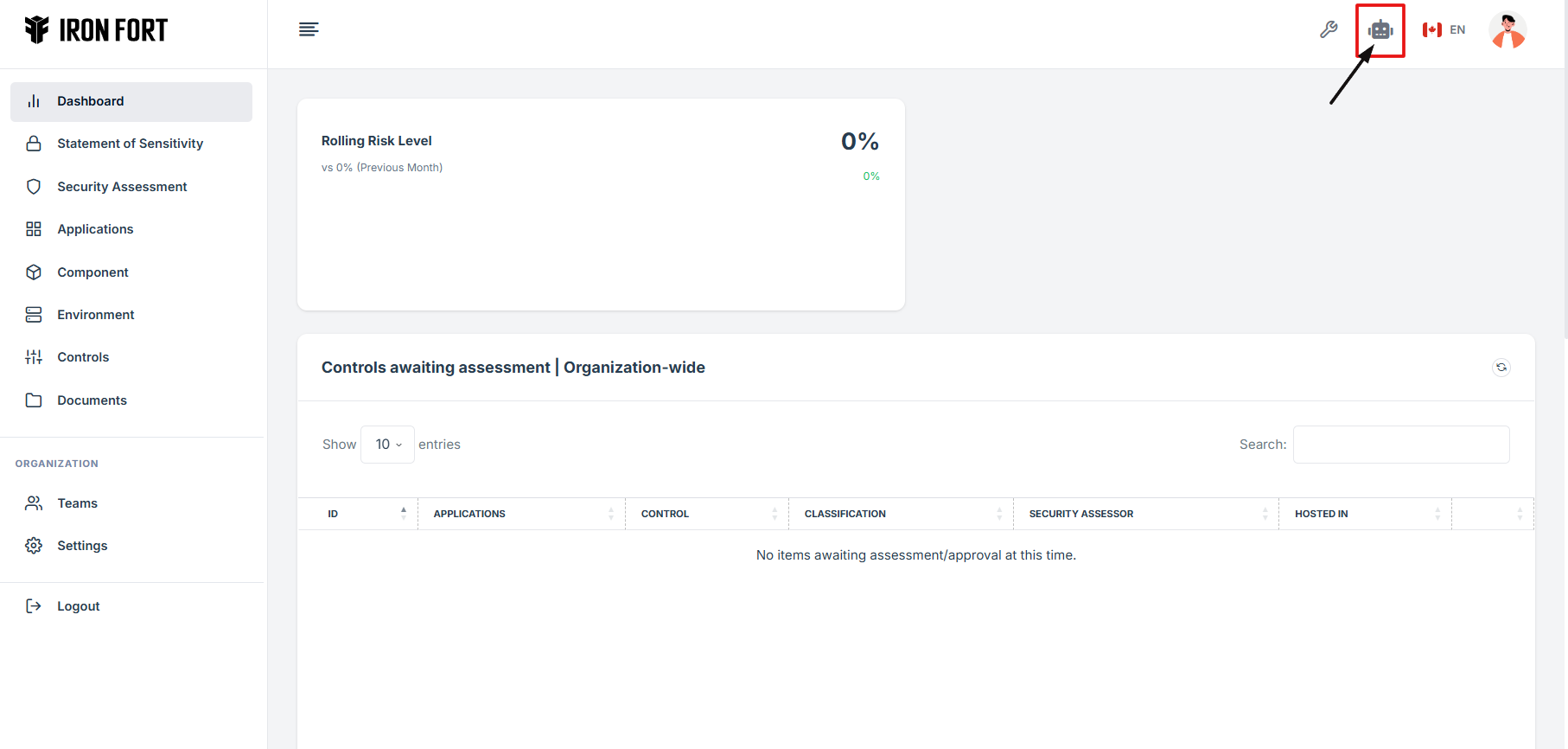
7. Once you're on the Forti Chat page, look for the "b+" (Add New Chat) icon next to the Forti Intelligence title.
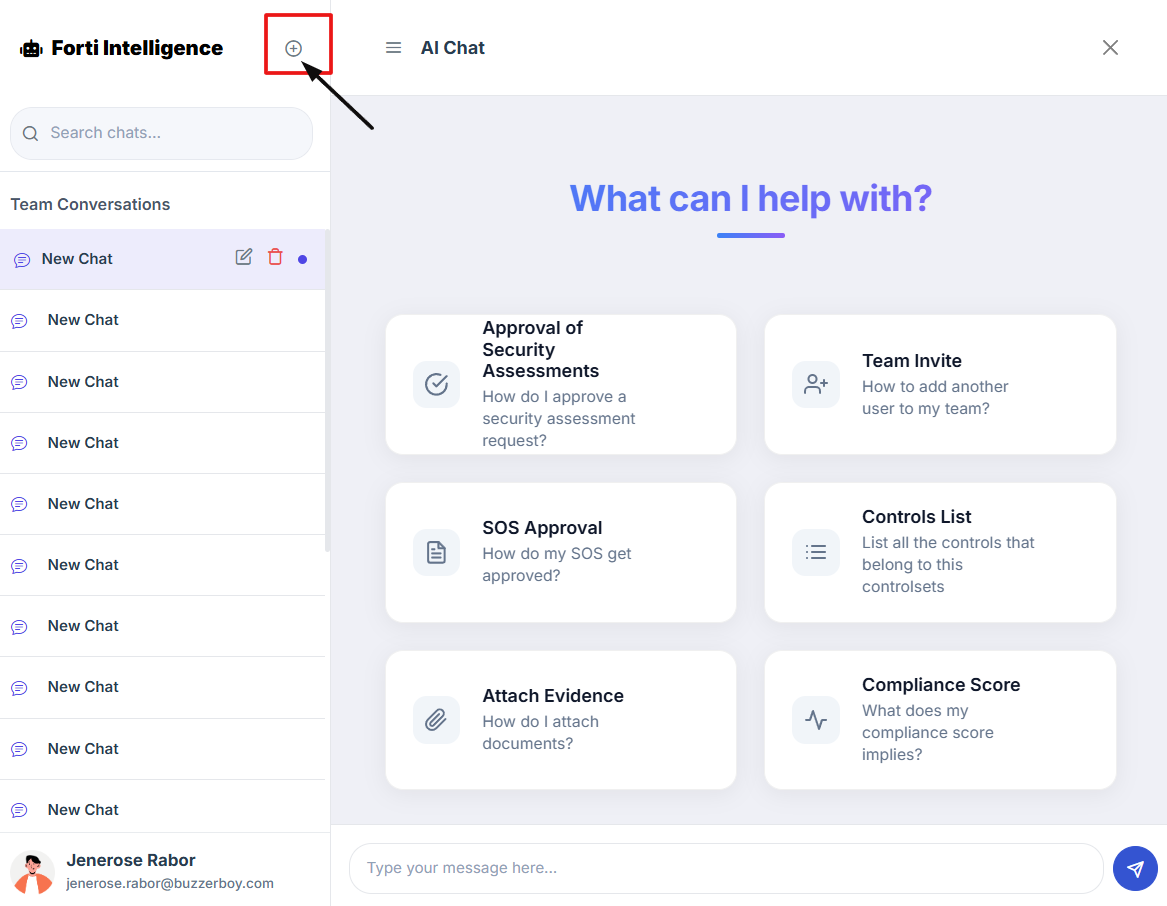
8. After creating a new chat, type your message or question into the message field at the bottom of the chat window.
9. When you're ready, click the blue send icon to submit your message and begin the conversation.
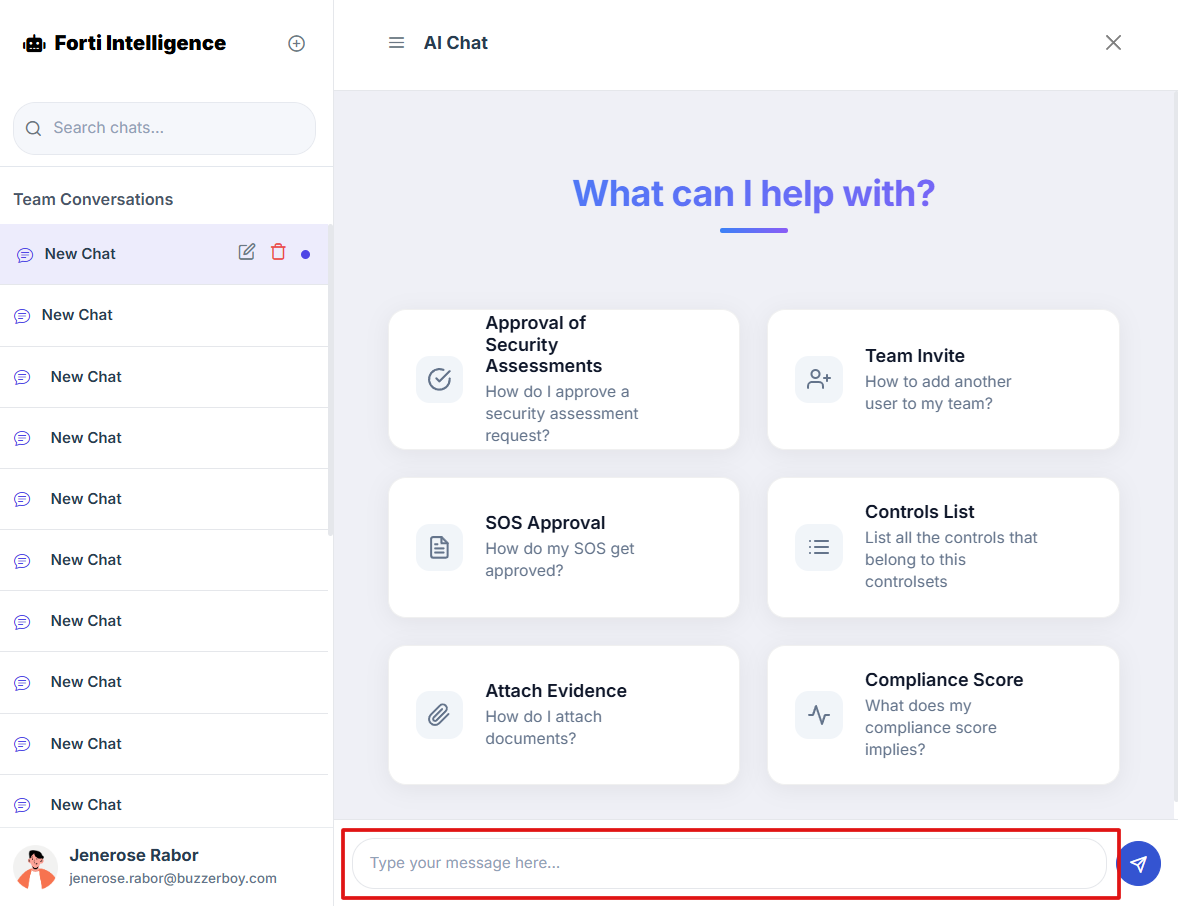
10. FortiAI also provides Shortcut options for common topics or frequently asked questions.
11. Click on any available Shortcut to quickly send a pre-set query without typing it manually.
-
How To: Rename a Title in Forti AI
- Navigate to your organization’s Iron Fort Compliance login page
- Log in to Your Account
- Check your email for the One-Time Password (OTP) sent on your email and enter the OTP to proceed
- Enter the OTP to verify your identity and click “validate.”
- Once logged in, a welcome prompt will appear displaying
- From your dashboard, click the robot icon located at the top right corner of the screen
- Once you're on the Forti Chat page, locate the Title of the chat you wish to rename.
- Hover over the title and click the pencil (edit) icon that appears next to it.
- Type your new desired title in the text field.
- After entering the new title, click the checkmark icon (✔) to save your changes.
- Your chat will now display the updated name.
1. Navigate to your organization’s Iron Fort Compliance login page
For example: https://compliance-demo.ironfortdemos.com/en/login/?next=/en
2. Log in to Your Account
Enter your email and password to log in.
3. Check your email for the One-Time Password (OTP) sent on your email and enter the OTP to proceed.
4. Enter the OTP to verify your identity and click “validate.”
5. Once logged in, a welcome prompt will appear displaying
-
Tenant Key Information: Verifying your system access
-
User Email: Your registered email for auditing purposes
-
Last Login Details: To track your previous access
-
Iron Fort Support Email: For any login issues or concerns
NOTE: If you recognize the details and are authorized, click "OK" to continue. However, if you are not an authorized user, click "Logout" immediately to exit.
6. From your dashboard, click the robot icon located at the top right corner of the screen.
7. Once you're on the Forti Chat page, locate the Title of the chat you wish to rename.
8. Hover over the title and click the pencil (edit) icon that appears next to it.
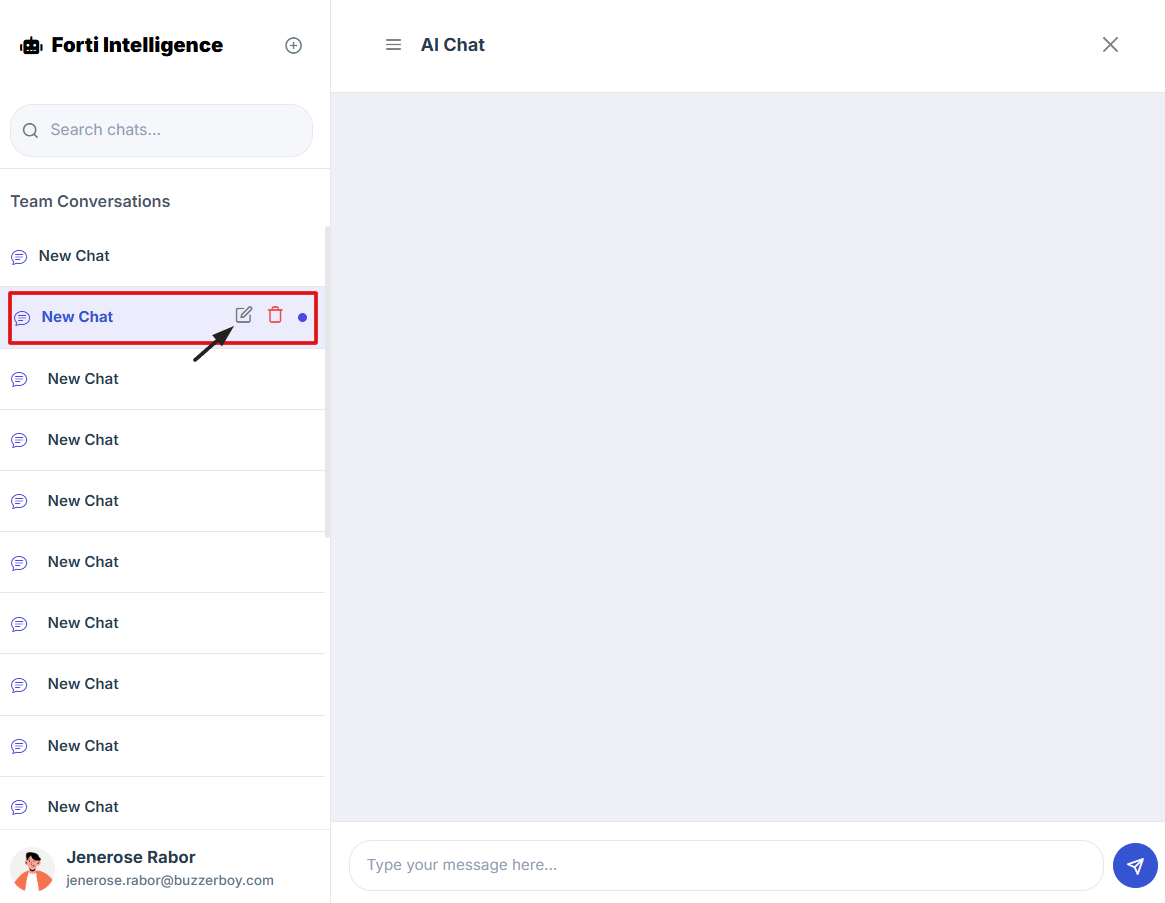
9. Type your new desired title in the text field.
Make sure the title clearly reflects the purpose or topic of the chat for easier identification later.
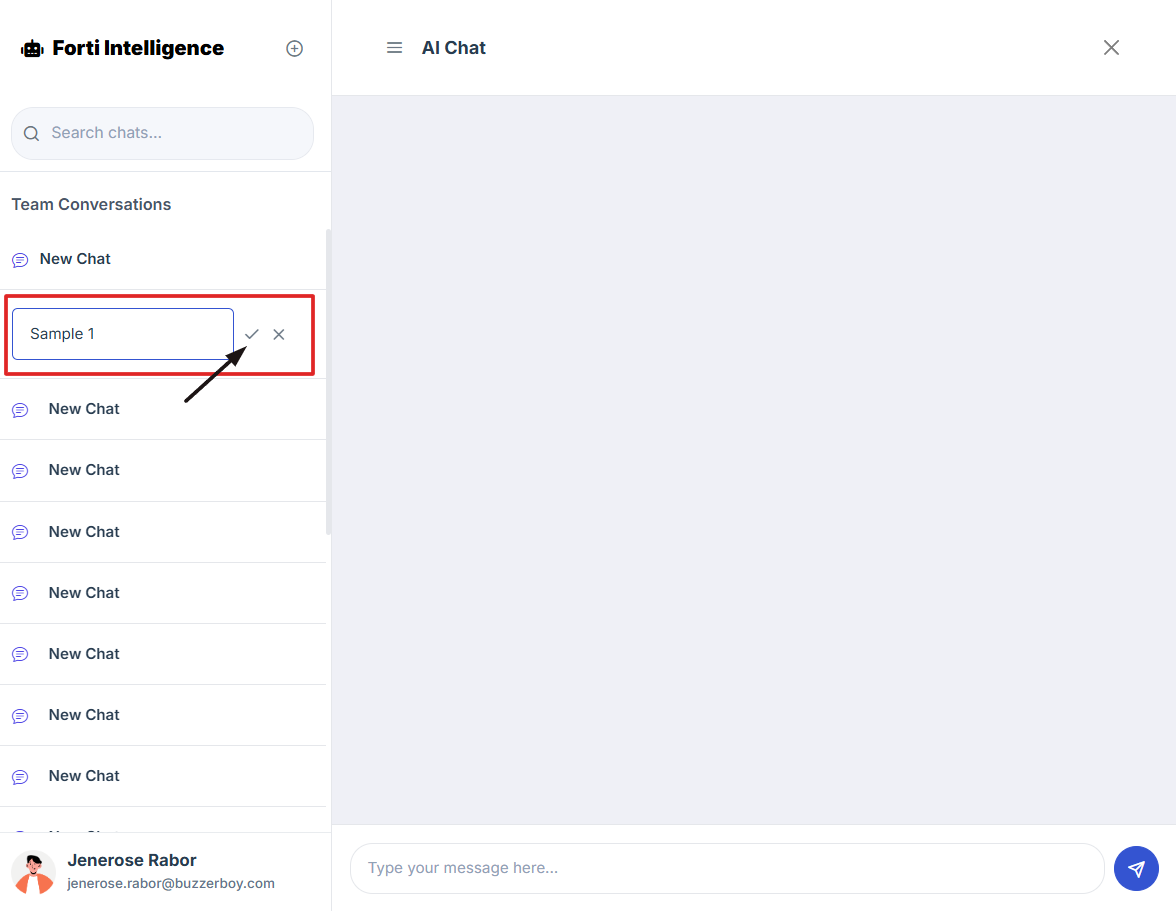
10. After entering the new title, click the checkmark icon (✔) to save your changes.
11. Your chat will now display the updated name.
-
How To: Search a Title in Forti AI
- Navigate to your organization’s Iron Fort Compliance login page
- Log in to Your Account
- Check your email for the One-Time Password (OTP) sent on your email and enter the OTP to proceed
- Enter the OTP to verify your identity and click “validate.”
- Once logged in, a welcome prompt will appear displaying
- From your dashboard, click the robot icon located at the top right corner of the screen
- Once you're on the Forti Chat page, use the search bar at the top to quickly find the chat title you are looking for.
- Simply type in a keyword or part of the title, and FortiAI will show matching results instantly.
- From the search results, click on the chat title you want to open
1. Navigate to your organization’s Iron Fort Compliance login page
For example: https://compliance-demo.ironfortdemos.com/en/login/?next=/en
2. Log in to Your Account
Enter your email and password to log in.
3. Check your email for the One-Time Password (OTP) sent on your email and enter the OTP to proceed.
4. Enter the OTP to verify your identity and click “validate.”
5. Once logged in, a welcome prompt will appear displaying
-
Tenant Key Information: Verifying your system access
-
User Email: Your registered email for auditing purposes
-
Last Login Details: To track your previous access
-
Iron Fort Support Email: For any login issues or concerns
NOTE: If you recognize the details and are authorized, click "OK" to continue. However, if you are not an authorized user, click "Logout" immediately to exit.
6. From your dashboard, click the robot icon located at the top right corner of the screen.
7. Once you're on the Forti Chat page, use the search bar at the top to quickly find the chat title you are looking for.
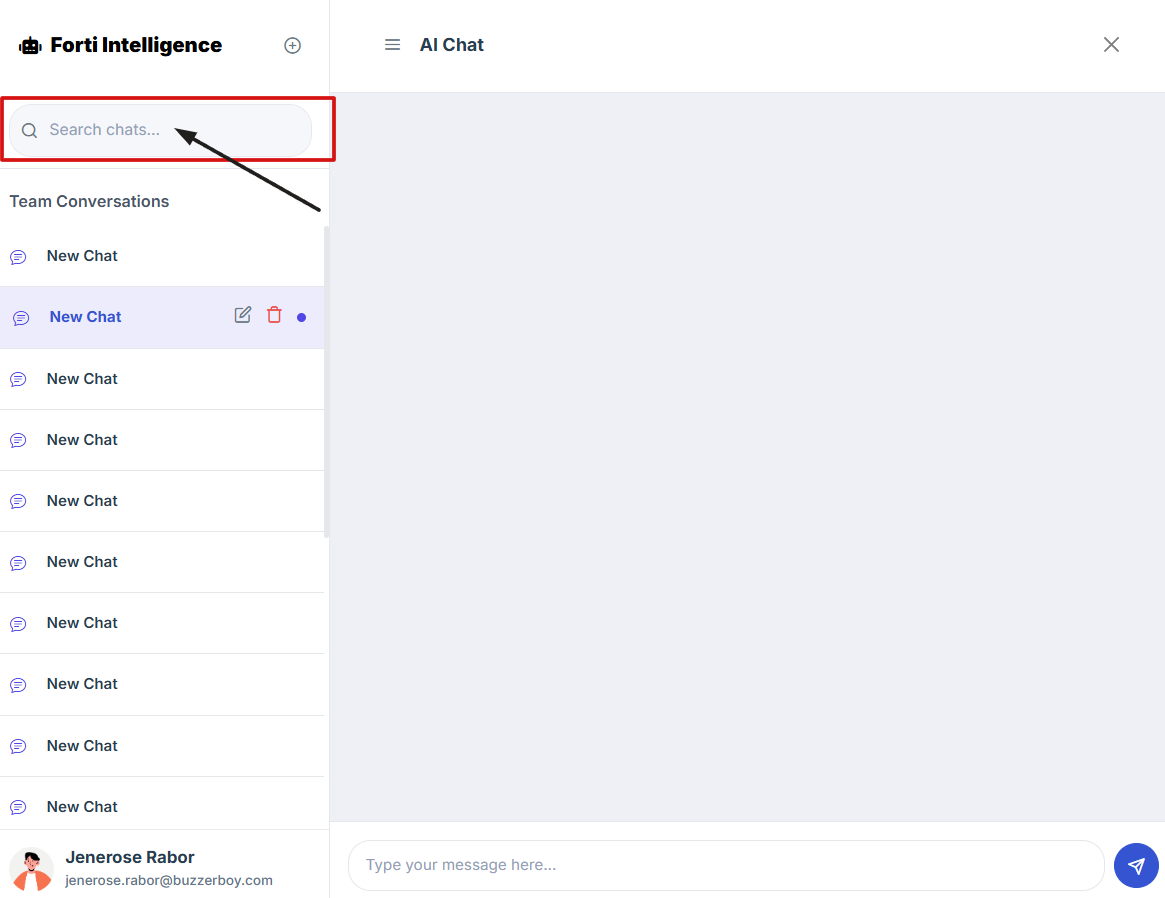
8. Simply type in a keyword or part of the title, and FortiAI will show matching results instantly.
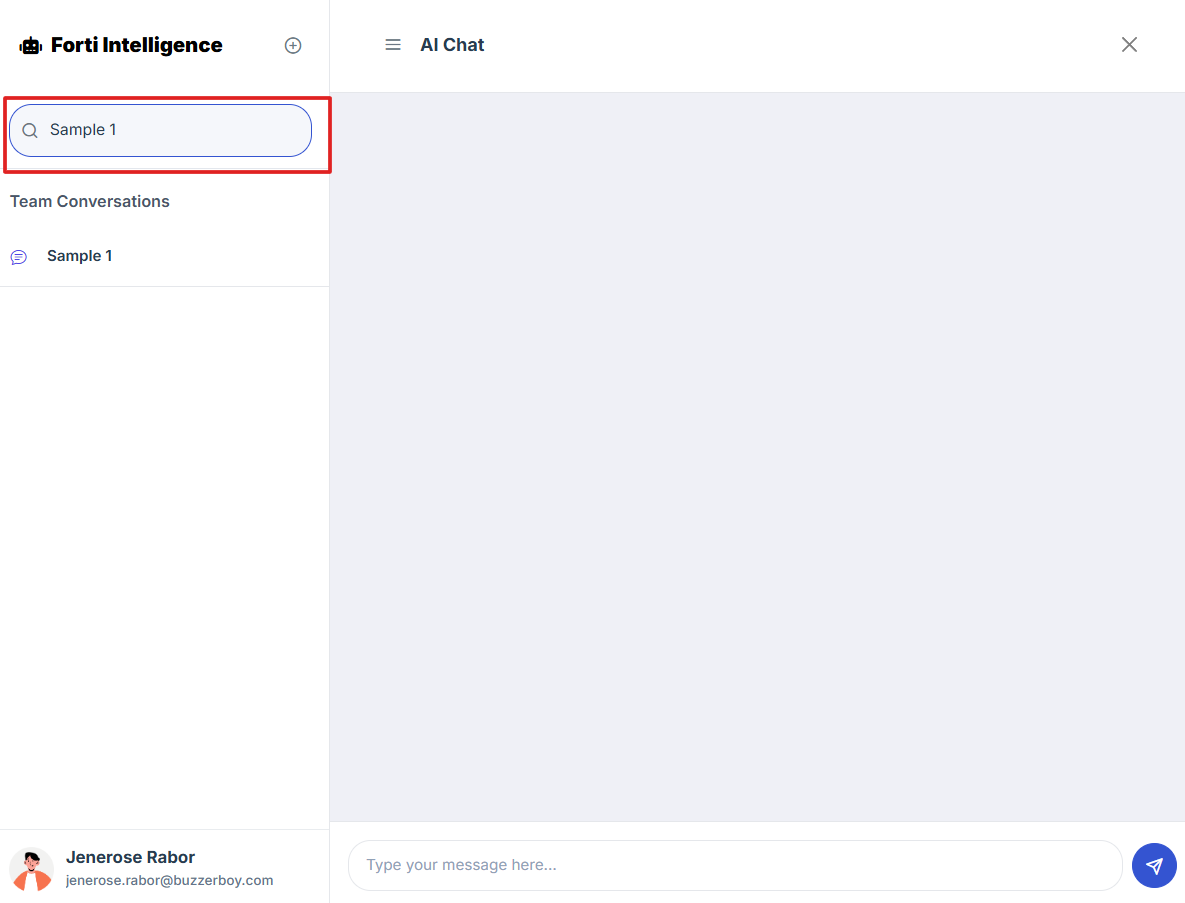
9. From the search results, click on the chat title you want to open.
You can now continue your conversation or review the details as needed.
-
How To: Navigate to the Suggestion Page via Forti Chat
- Log in to Iron fort: How To: Login
- Locate and click the Chat AI tab at the top-right corner on the dashboard screen.
- Once you're on the Forti Chat page, look for the "+" (Add New Chat) icon next to the Forti Intelligence title.
- After clicking the “+” icon, you will be directed to the Suggestions page, where you can select from various help topics.